
Table of Contents
Club Administrators
Club Board Roles
Email Lists
Members Photos
Member Status
Recognitions
User Emails
Working With Children
Club Administrators
As a Club Administrator you are able to:
* Add and Amend the status of members of your club.
* Add, Amend and Delete your clubs board/executives for the current and next year
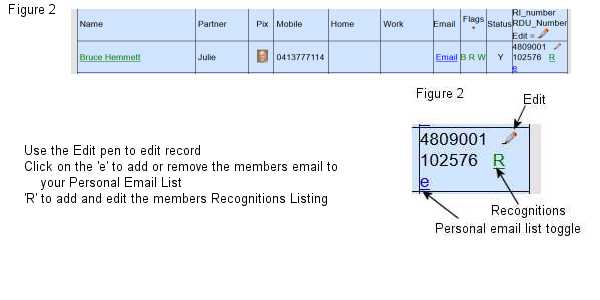
To edit a members details use the pencil  - edit button link. Make your changes and then go to bottom of page and click on the Update button to save your changes.
To Add a new member use the New link. - Before you start you will need the new members membership number for both RI and RDU
: * Rotary International members number Sign in to your RI My Rotary account
* Rotary Down Under Members Number You will find the the link to sign in under SUBSCRIPTION MAMAGER
Register the new member on the above sites first and then enter those numbers below
Each time a members details are updated an automatic email is generated and sent to Rotary Down Under (RDU) to have RDU update their records as it may affect the distribution of the RDU Magazine.
Club Board Roles
Most club boad members roles as self explanatory and are normally an annual role Rotary International (RI) has good definitions Here -
The following are more clearly defined
* Committee - Can be used to add other club members to a non defined committee
* Executive Secretary - This position is a semi permanent role for the person responsible for the clubs databases. This person should be tech savy and willing to keep the club records up to date. This person could be a member of another club or in larger clubs this could also be an outside professional paid person. The Executive Secretary would maintain - DACdb - District Contact database and Rotary International - My Rotary In the absence of this role the club secretary would normally be responsible for these activities. Some clubs give their Executive Secretary a number of other roles within their own individual club.
* Youth Protection Officer - Is the person nominated to manage the Districts Child Protection Policy (DCPP) for the club and it be a semi permanent role. This person would beocme the clubs 'Employer' as set out in part 11 - Club Compliance of the DCPP. Maintain the clubs Working With Children Check register.
Step by Step guide to enter your new Club Board

Member Status -
* Active Rotary Member
* Honorary / Life Member
* Rotary Friend - This status can be used to add a non club member to be used for say bulletin distribution, event management, non club member as a board member, email lists etc
* Rotaract Member
* Interact Member
* Deceased
* Ex Member - Rather than delete a member you change the members status from Active Member to Honorary/Life Member, Ex Member or Deceased. This way you can continue to send that ex member your club bulletins until such time that ex member asks you to discontinue. The database will grow to account for all current and ex members.
Once a member is set to an Ex Member you will be taken to an exit survey. The Exit survey will need to be filled in.
Recognitions - A regognition is an award that is given to a member such as a Paul Harris Recognition, Centurion, Charger Member etc. Clubs can also add their own club specific award to the available Recognition list by letting the Web Master know of your clubs requirements. Recognitions are also ALUMNI entries. (See fugure 2 above)
The first Recognition is added to a member via the Members Contact List. The link is the 'R' at the right end of the members listing. After a member has the first Recognition additional Recognitions can either be added using the R link in the Members Contact List of from the Recognition report
REPORTS
* My Club email list - Email list of only active members of your club
* Bulletin list - Email ist of current and past members where Bulletin flag set to Yes
* District Bulletin list - Used to send emails to required district members
* Roster Selection - Allows you to keep track of meeting rosters
* Members Anniversarys - Can be used to publish special dates of members.
* Administrators - List and manage members Scurity Status
* Recognitions -
* Youth Protection Menu -
MEMBERS PHOTOS
Your photo can be emailed to the webmaster Bruce Hemmett brucehemmett@gmail.com
* The photo should be in colour
* The photo should preferably be taken on a plain background such as a wall.
* Brick walls and garden backgrounds should be avoided.
* The image size should have a size between 1mb and 2mb for best result.
* If cropping the photo please do not shrink or compact the image below 500k If you are not confident in cropping your photo - please just send the photo you have.
* The photo should be a passport styled like image below
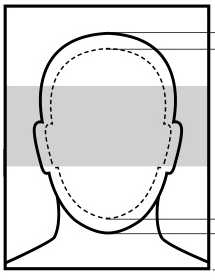
The photo should be in focus and in colour
The uploaded photo may be edited by the webmaster before uploadingto the database.
My Email List - Can be created by adding & removing members listed in the members contact list or District Members listing.
Click on the 'e' in the Edit box of the Members Listing to toggle a members email to your Personal Email List (See Figure 2 above)
District Email Lists
The district provides a large number of email list. These lists are for the strict use for Rotary activities.
Cut & past the selected email list to BCC. We strongly recommend sending by BCC to keep the email list private.
Protecting Email Address Privacy
For security and privacy reasons, it is best to use the Blind Carbon Copy (BCC) feature when sending an email message to a large number of people. When you place email addresses in the BCC field of a message, those addresses are invisible to the recipients of the email. Conversely, any email addresses that you place in the To field or the CC field are visible to everyone who receives the message.
Benefits of Using BCC
Using the BCC field to send an email message to a large group of people has a number of benefits, including:
- The privacy of email addresses is protected in the original message. Recipients will receive the message, but won't be able to see the addresses listed in the BCC field.
- When an email is forwarded, the addresses of everyone in the To and CC fields are also forwarded along with the message. Addresses that have been placed in the BCC field are not forwarded.
- If you have placed a large list of recipients in the To or CC field, all of them will receive the reply. By placing recipients in the BCC field, you can help protect them against receiving unnecessary replies from anyone using the Reply All feature.
- Many viruses and spam programs are now able to sift through mail files and address books for email addresses. Using the BCC field acts as an anti-spam precaution. It reduces the likelihood that recipients will receive a spam message or a virus from another recipient’s infected computer.
USER EMAILS
All users must have their own unique email address. This is a system requirement to identify each person as an individual who belongs to a particular club
There may be some instances where a user (member) is a member of a number of clubs. The way round this could be:
* Set up an alias email. Some email providers allow you to use a number of alias emails that redirect these email to your actual account email.
* In some instances you can create an email address by simply adding '+something' to the end of your actual email name. e.g if your actual email is say fredsomebody@youremail.com then by say adding +1 to this email i.e. fredsomebody+1@youremail.com would give you your own alias email. Best to test this first. In fact you can add any words after the '+' and before the '@' to create as many unique email addresses to yourself as you like. Google 'adding + to your email' to see more details on how this works
The using the '+' does not work with all email providers. Test the created + email by sending a test email to your self first. If the '+' email does not work then you will need to get another email or an alias email from your provider.
WORKING WITH CHILDREN CHECK REGISTER
The Clubs WWC register is managed at the Youth Protection Menu in the Club Admin Area. Access to this is granted to the clubs 'Employer' as set out in Secion 11 - Club Compliance of the Districts Child Protection Policy (DCPP). Please study this section to gain a full understanding of your responsibilities. The 'Employer' would normally be the clubs Youth Protection Officer, Executive Secretary or Secretary. It is recommended that the 'Employer' be an ongoing position within the club.
It is recommended that each club should nominate and register their Youth Protection Officer. This person is allocated to that position and the Club Board register is updated to reflect this. This position is a semi permanen appointmentt.
Each club member is to supply their WWC detains and this information is recorded and maintained in the Youth Protection Register. Maintenance involves the 'Employer' Verifying the members details at https://wwccheck.ccyp.nsw.gov.au/Employers/Login and updateing the club Register with the members WW_Children_Expiry: and WWC_Verified: [ticked] This Verification is to be done for each member.
The Register will show a green tick for each member whose registration is correct and up to date.
The Report * My Club contact list: has an indicator where W=Working With Children [Colours - Green W=Verified, Red W=Still to be verified or out of date)
Questions & Answers
* How do you Remove or Terminate a member of your club.
How do you Remove or Terminate a member of your club
Rather than delete a member you change the members status from Active Member to Honorary/Life Member, Ex Member or Deceased. This way you can continue to send that ex member your club bulletins until such time that ex member asks you to discontinue. The database will grow to account for all current and ex members.
To do this Go to Edit /Amend Member Ddetails
Step 1 - Amend the members Status: From Active Rotary Member to one of the other options
Step 2 - Fill in the Date Resigned:
Step 3 - Save.